Version 0.2 — March 2026. This guide replaces v0.1.
Questions, password resets, software requests, or bugs? Contact the SysAdmins: Gabriel Ballesteros · gaballesteros@gmail.com | Valentín Berríos · v.berriosfarias@gmail.com
1. Overview
McCartney is a Linux-based HPC cluster running Slurm as its workload manager. It has no graphical interface — all interaction happens through a Bash command-line terminal. If you are new to the Linux command line, work through one of these tutorials before proceeding:
- Terminal Basics (interactive, browser-based)
- Learning the Shell — linuxcommand.org
- The Missing Semester of Your CS Education — MIT
2. Hardware
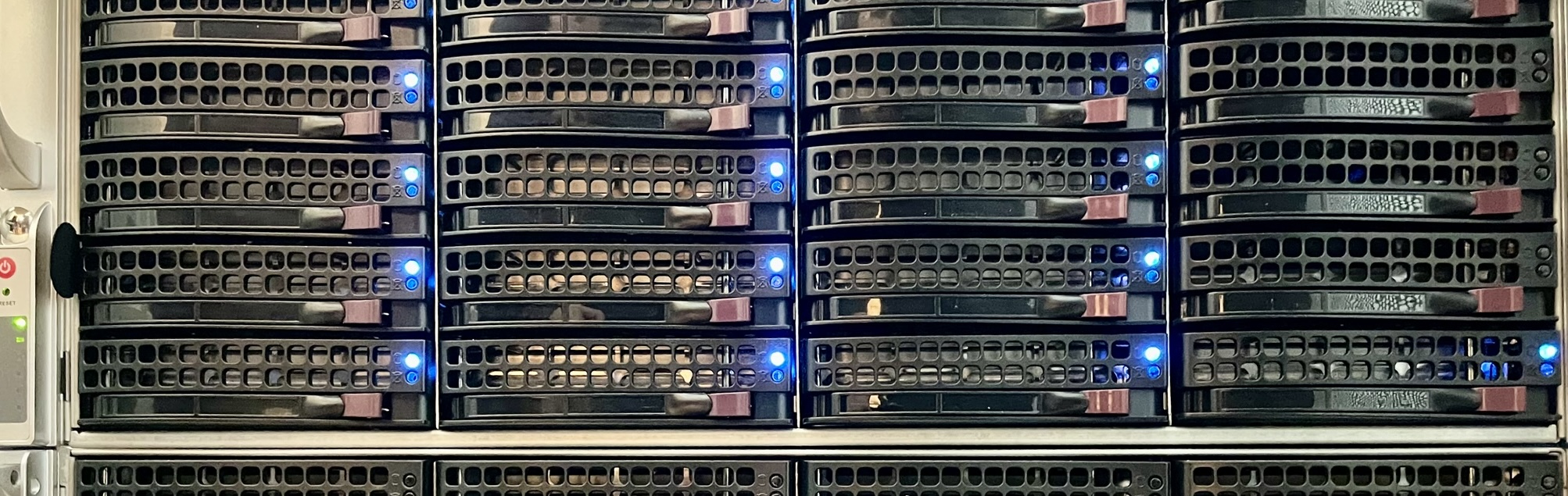
McCartney consists of four compute nodes across two partitions, plus a dedicated storage node that also hosts the front-end (the machine you log into).
The front-end has only 4 GB RAM and 2 CPU cores — intentionally limited.
Do not run analyses on it. Use it only to write scripts, manage files, and submit jobs to the queue.
Partition: basic
| Node | CPUs (cores) | RAM |
|---|---|---|
| n001 | 40 | 2 TB |
| n002 | 16 | 256 GB |
| n003 | 32 | 256 GB |
Partition: gpu
| Node | CPUs (cores) | RAM | GPU |
|---|---|---|---|
| g001 | 40 | 256 GB | NVIDIA RTX A5000 (24 GB VRAM) |
Which node should I use?
Choose based on three factors:
- How many CPU cores does my tool use?
- How much RAM does my job need? (jobs requiring >256 GB must go to n001)
- Does my tool use GPU acceleration? →
--partition=gpu
3. Your Account
Accounts follow the format first initial + last name (all lowercase). Passwords are set to firstname + account creation date by default.
Example: A user named Paul McCartney, whose account was created on the 18th of June, receives:
username: pmccartney
password: paul18
Custom passwords are available on request — contact a SysAdmin.
Note: when you type your password in the terminal, no characters are displayed. This is normal.
4. Connecting via SSH
All connections use SSH (Secure Shell). You need:
| Parameter | Value |
|---|---|
| Port | 20223 |
| Inside UTALCA Wi-Fi / wired | 172.22.0.21 |
| Outside UTALCA (home, 5G, Starlink, abroad) | 190.110.100.21 |
The UTALCA-Visitas network does not work for SSH connections.
On macOS / Linux
Open a terminal and run:
# From inside the university network
ssh pmccartney@172.22.0.21 -p 20223

# From outside
ssh pmccartney@190.110.100.21 -p 20223
On Windows
SSH is built into Windows 10/11. Press Start, type cmd, open Command Prompt, and run the same command above.
Alternatively, install Windows Terminal for a better experience.
3-strike rule: entering the wrong password three times in a row will ban your IP address. If this happens, switch networks and contact a SysAdmin to unblock you.
5. Transferring Files
Windows — WinSCP (recommended)
Download WinSCP and fill in the connection details:
| Field | Value |
|---|---|
| File protocol | SFTP |
| Host name | 172.22.0.21 (or 190.110.100.21 from outside) |
| Port | 20223 |
| User name | your username (e.g. pmccartney) |
| Password | your password |
The left panel shows your local machine; the right panel shows the cluster. Drag and drop to transfer.
macOS / Linux — command line
# Copy a local file TO the cluster
scp -P 20223 myfile.fastq.gz pmccartney@172.22.0.21:/home/pmccartney/data/

# Copy an entire folder TO the cluster
scp -P 20223 -r my_reads/ pmccartney@172.22.0.21:/home/pmccartney/data/

# Copy a result FROM the cluster to your local machine
scp -P 20223 pmccartney@172.22.0.21:/home/pmccartney/results/output.tsv ./
You can also mount the cluster as a network drive in your file manager:
# Linux file manager → "Connect to server"
ssh://172.22.0.21
Faster large transfers — rsync
# Sync a folder, showing progress, over the custom port
rsync -avz --progress -e "ssh -p 20223" my_reads/ pmccartney@172.22.0.21:/home/pmccartney/data/
6. Software Modules
McCartney uses the Environment Modules system. Software is not available by default — you must load it before use.
# See all installed software
module avail

# Load a specific tool
module load NCBI-Blast
module load FastQC
module load Bowtie2

# See what you have loaded right now
module list

# Unload a module
module unload FastQC

# Unload everything
module purge
Do not install software in your home directory. If a tool you need is missing, contact Gabriel or Valentín — they will install it system-wide, along with any required databases.
Reference scripts with common module combinations are available on the cluster at:
/home/scripts-referencia/
7. The SLURM Job Scheduler
McCartney runs Slurm (Simple Linux Utility for Resource Management) to allocate compute resources fairly across all users. You do not run jobs directly — you submit them to a queue and Slurm starts them when the requested resources become free.
Over-requesting resources harms everyone. A job asking for 20 CPUs when your code uses only 1 blocks those CPUs for other users and forces your own job to wait longer for a slot. Estimate carefully.
Monitoring commands
# View all jobs currently running or queued
squeue

# View only your jobs
squeue -u pmccartney

# Check node availability (idle = free, alloc = fully busy, mix = partially free)
sinfo

# Cancel a job (find JOBID with squeue first)
scancel <JOBID>

# Cancel all your jobs at once
scancel -u pmccartney
sinfo state | Meaning |
|---|---|
idle | Node is 100% free |
mix | Node has some CPUs/RAM still available |
alloc | Node is fully occupied |
drain | Node is being taken offline by admin |
Full documentation: slurm.schedmd.com/squeue.html · sinfo · scancel
8. Writing Job Scripts
Jobs are submitted with sbatch using a shell script (.sh) that begins with #SBATCH directives declaring the resources you need.
Common #SBATCH directives
| Directive | Example | Meaning |
|---|---|---|
--job-name | --job-name=blast_run | Label shown in squeue |
--partition | --partition=basic | Which partition to use |
--nodes | --nodes=1 | Number of nodes |
--ntasks | --ntasks=1 | Number of parallel tasks |
--cpus-per-task | --cpus-per-task=16 | CPU cores per task |
--mem | --mem=64G | RAM per node (K/M/G/T suffixes) |
--time | --time=24:00:00 | Max wall-clock time (HH:MM:SS) |
--output | --output=job_%j.out | File for standard output (%j = job ID) |
--error | --error=job_%j.err | File for standard error |
--array | --array=1-6 | Submit N identical jobs as an array |
--mail-type | --mail-type=END,FAIL | Email on job end or failure |
--mail-user | --mail-user=pmccartney@utalca.cl | Notification address |
Full reference: slurm.schedmd.com/sbatch.html
9. Script Templates
Template A — Single core, low memory
Suitable for: simple scripts, R, Python, serial tools.
#!/bin/bash
#SBATCH --job-name=my_job
#SBATCH --partition=basic
#SBATCH --nodes=1
#SBATCH --ntasks=1
#SBATCH --cpus-per-task=1
#SBATCH --mem=4G
#SBATCH --output=output_%j.out
#SBATCH --error=output_%j.err

# Load required module(s)
module load <module_name>

# Your command
<command>
Submit with:
sbatch my_script.sh
Template B — Multi-core, high memory
Suitable for: assembly, read mapping (BWA, Bowtie2), database searches (DIAMOND, BLAST).
#!/bin/bash
#SBATCH --job-name=mapping_run
#SBATCH --partition=basic
#SBATCH --nodes=1
#SBATCH --ntasks=1
#SBATCH --cpus-per-task=16
#SBATCH --mem=64G
#SBATCH --time=24:00:00
#SBATCH --output=mapping_%j.log
#SBATCH --error=mapping_%j.err

module load Bowtie2

# Pass the thread count automatically from SLURM
THREADS=$SLURM_CPUS_PER_TASK

bowtie2 -p $THREADS \
    -x /path/to/index \
    -1 reads_R1.fastq.gz \
    -2 reads_R2.fastq.gz \
    -S output.sam
Template C — Job array (process multiple samples in parallel)
Slurm launches one independent copy of the script per array index. Use this whenever you have N samples that can be processed identically and independently — it is much more efficient than submitting N separate scripts.
#!/bin/bash
#SBATCH --job-name=fastqc_array
#SBATCH --partition=basic
#SBATCH --array=1-6              # launches 6 jobs
#SBATCH --cpus-per-task=16
#SBATCH --mem=64G
#SBATCH --time=04:00:00
#SBATCH --output=fastqc_%A_%a.out   # %A = array job ID, %a = task index
#SBATCH --error=fastqc_%A_%a.err

# 1. Define sample list
SAMPLES=("Sample1" "Sample2" "Sample3" "Sample4" "Sample5" "Sample6")

# 2. Select this task's sample (SLURM_ARRAY_TASK_ID starts at 1, bash arrays at 0)
INDEX=$(($SLURM_ARRAY_TASK_ID - 1))
SAMPLE=${SAMPLES[$INDEX]}

# 3. Run
module load FastQC

mkdir -p fastqc_results

echo "Processing $SAMPLE at $(date)"
fastqc -t 16 -o fastqc_results/ reads/${SAMPLE}_R1.fastq.gz reads/${SAMPLE}_R2.fastq.gz
echo "Done at $(date)"
Learn more: Slurm job arrays documentation
Template D — Array with local scratch (fast I/O)
Copying data to the node’s local /scratch disk before processing avoids network bottlenecks on I/O-heavy jobs.
#!/bin/bash
#SBATCH --job-name=fastqc_scratch
#SBATCH --partition=basic
#SBATCH --array=1-6
#SBATCH --nodes=1
#SBATCH --ntasks=1
#SBATCH --cpus-per-task=16
#SBATCH --mem=64G
#SBATCH --time=04:00:00
#SBATCH --output=fastqc_%A_%a.out
#SBATCH --error=fastqc_%A_%a.err

SAMPLES=("Sample1" "Sample2" "Sample3" "Sample4" "Sample5" "Sample6")
INDEX=$(($SLURM_ARRAY_TASK_ID - 1))
SAMPLE=${SAMPLES[$INDEX]}

SUBMIT_DIR=$(pwd)
INPUT_DIR="${SUBMIT_DIR}/reads"
OUTPUT_DIR="${SUBMIT_DIR}/fastqc_results"

# Set up scratch space on the compute node
SCRATCH="/scratch/${SLURM_JOB_ID}_${SLURM_ARRAY_TASK_ID}"
mkdir -p $SCRATCH

# Cleanup scratch on exit (success or failure)
cleanup() { echo "Cleaning scratch..."; rm -rf "$SCRATCH"; }
trap cleanup EXIT

# Copy input data to scratch
cp ${INPUT_DIR}/${SAMPLE}_R1.fastq.gz $SCRATCH/
cp ${INPUT_DIR}/${SAMPLE}_R2.fastq.gz $SCRATCH/

# Run analysis on scratch
cd $SCRATCH
module load FastQC
fastqc -t 16 -o $SCRATCH/ ${SAMPLE}_R1.fastq.gz ${SAMPLE}_R2.fastq.gz

# Move results back to shared storage
mkdir -p $OUTPUT_DIR
mv ${SAMPLE}*_fastqc.{html,zip} $OUTPUT_DIR/

echo "Finished $SAMPLE at $(date)"
10. Using AI to Generate Script Drafts
Large language models (ChatGPT, Google Gemini, Claude) can generate solid SLURM script drafts. Use prompts like:
“Write a SLURM script for the basic partition requesting 64 GB RAM and 16 CPUs to run DIAMOND blastp on a protein FASTA file.”
Always review the generated script and verify that:
- The partition name matches (
basicorgpu) - Memory and CPU requests are realistic
- The module names match what is installed on McCartney (
module avail)
11. Best Practices
| Do | Don’t |
|---|---|
Run sinfo before submitting to gauge node availability | Run compute jobs directly on the front-end |
| Estimate memory needs — check tool documentation | Request 20× more RAM than needed |
Use $SLURM_CPUS_PER_TASK instead of hardcoded thread counts | Hardcode -t 16 if you might change --cpus-per-task |
Set --time to a realistic upper bound | Leave --time unset (may block the queue) |
Use --array for batches of similar samples | Submit dozens of identical sbatch calls |
Redirect output to .out / .err files | Let job output flood the terminal |
| Clean up intermediate files when the job finishes | Leave hundreds of GB of temporary files |
12. Useful Links
| Resource | URL |
|---|---|
| Slurm official documentation | slurm.schedmd.com |
sbatch man page | slurm.schedmd.com/sbatch.html |
| Job arrays guide | slurm.schedmd.com/job_array.html |
| Terminal basics (interactive) | sandbox.bio/tutorials/terminal-basics |
| Learning the Shell | linuxcommand.org/lc3_learning_the_shell.php |
| MIT Missing Semester | missing.csail.mit.edu |
| WinSCP (Windows file transfer) | winscp.net |
| Windows Terminal | aka.ms/terminal |
| HPC Carpentry (Slurm tutorial) | carpentries-incubator.github.io/hpc-intro |
13. Getting Help
For any of the following, contact the SysAdmins directly:
- Software installation or database setup
- Password reset or new account creation
- Node failures or unexpected job terminations
- Access from a banned IP
- Any doubt not covered here
Gabriel Ballesteros — gaballesteros@gmail.com
Valentín Berríos — v.berriosfarias@gmail.com
You can also query each Slurm command’s built-in manual page directly on the cluster:
man sbatch
man squeue
man sinfo